
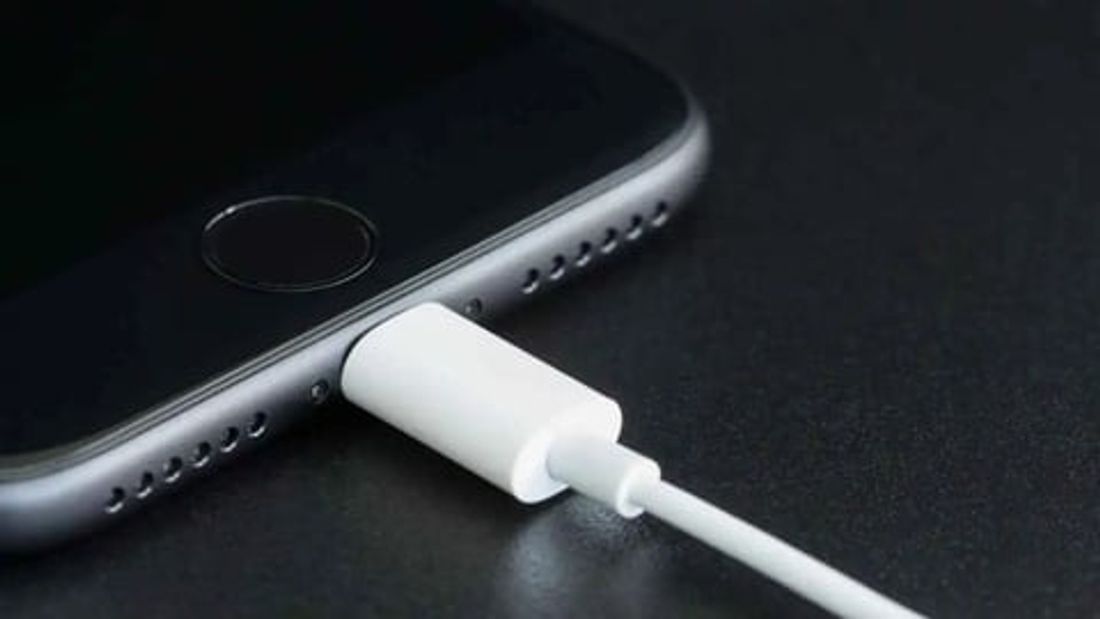
Most iPhone users want to extend their battery life and reduce the need to recharge throughout the day. Over time, a battery’s ability to hold a charge declines, but phone settings and usage habits also affect how quickly power is drained.
Closing open apps may seem like a way to save energy, but it is unnecessary in most cases. Instead of constantly closing apps, users can adjust several settings to reduce power consumption and extend their phone’s battery life.
𝗧𝗼𝗽 𝟭𝟬 𝗦𝗲𝘁𝘁𝗶𝗻𝗴𝘀 𝘁𝗼 𝗖𝗵𝗮𝗻𝗴𝗲
𝗟𝗶𝗺𝗶𝘁 𝗕𝗮𝗰𝗸𝗴𝗿𝗼𝘂𝗻𝗱 𝗔𝗽𝗽 𝗥𝗲𝗳𝗿𝗲𝘀𝗵
The Background App Refresh feature allows apps to update their content and retrieve data even when they are not actively being used, which can contribute to battery drain. You can disable this feature entirely or choose which apps are allowed to use it to reduce unnecessary background activity.
𝗥𝗲𝘀𝘁𝗿𝗶𝗰𝘁 𝗟𝗼𝗰𝗮𝘁𝗶𝗼𝗻 𝗦𝗲𝗿𝘃𝗶𝗰𝗲𝘀
Allowing apps to access your location continuously can increase power consumption. It is therefore advisable to review location permissions and select “While Using the App” instead of allowing constant access, whenever appropriate for the app’s function. This helps limit location tracking when it is not needed.
𝗥𝗲𝗱𝘂𝗰𝗲 𝗦𝗰𝗿𝗲𝗲𝗻 𝗕𝗿𝗶𝗴𝗵𝘁𝗻𝗲𝘀𝘀 𝗼𝗿 𝗘𝗻𝗮𝗯𝗹𝗲 𝗔𝘂𝘁𝗼-𝗕𝗿𝗶𝗴𝗵𝘁𝗻𝗲𝘀𝘀
The screen is one of the main factors affecting battery consumption, particularly when brightness remains high for extended periods. You can lower the brightness manually or enable Auto-Brightness, which adjusts screen illumination according to surrounding conditions and helps avoid wasting energy on unnecessarily bright lighting.
𝗨𝘀𝗲 𝗪𝗶-𝗙𝗶 𝗪𝗵𝗲𝗻 𝗔𝘃𝗮𝗶𝗹𝗮𝗯𝗹𝗲
Connecting to cellular networks can consume more power than using a suitable Wi-Fi connection, especially in areas with weak cellular signals. Connecting to a reliable Wi-Fi network whenever possible may therefore help reduce battery consumption during everyday use.
𝗧𝘂𝗿𝗻 𝗢𝗳𝗳 𝗔𝗹𝘄𝗮𝘆𝘀-𝗢𝗻 𝗗𝗶𝘀𝗽𝗹𝗮𝘆
The Always-On Display feature is available on certain iPhone models and allows the time, notifications, and other essential information to remain visible even when the phone is locked. Although useful, it consumes some power. Disabling it may help extend battery life if conserving energy is more important than keeping information continuously visible on the screen.
𝗘𝗻𝗮𝗯𝗹𝗲 𝗗𝗮𝗿𝗸 𝗠𝗼𝗱𝗲
Dark Mode can help reduce power consumption on iPhones with OLED displays because these screens can turn off individual pixels when displaying black. This means dark interfaces may use less energy, particularly when large areas of the screen are black. However, the amount of energy saved varies depending on the apps and how the phone is used.
𝗥𝗲𝗱𝘂𝗰𝗲 𝘁𝗵𝗲 𝗦𝗰𝗿𝗲𝗲𝗻 𝗥𝗲𝗳𝗿𝗲𝘀𝗵 𝗥𝗮𝘁𝗲 𝘁𝗼 𝟲𝟬 𝗛𝘇
Some iPhone models support refresh rates of up to 120 Hz through ProMotion technology, making scrolling and on-screen movement smoother. However, higher refresh rates may require additional power under certain conditions. On compatible devices, the Limit Frame Rate feature allows users to reduce the refresh rate to 60 Hz, which may help conserve energy at the expense of slightly less fluid on-screen movement.
𝗘𝗻𝗮𝗯𝗹𝗲 𝗔𝗱𝗮𝗽𝘁𝗶𝘃𝗲 𝗣𝗼𝘄𝗲𝗿
Apple offers Adaptive Power on certain supported devices and operating system versions to extend battery life by analyzing usage patterns and making adjustments when necessary. These adjustments may include slightly reducing screen brightness and limiting some background activity, helping reduce power consumption without requiring users to change every setting manually.
𝗧𝘂𝗿𝗻 𝗢𝗻 𝗟𝗼𝘄 𝗣𝗼𝘄𝗲𝗿 𝗠𝗼𝗱𝗲
Low Power Mode reduces battery consumption by limiting certain activities and functions, including background app activity and some visual effects. It can be enabled when the battery level drops or whenever users need to extend their phone’s operating time away from a charger.
On devices that support Adaptive Power, Low Power Mode may turn on automatically when the battery level falls to 20%, depending on the applicable settings.
𝗢𝗽𝘁𝗶𝗺𝗶𝘇𝗲 𝗖𝗵𝗮𝗿𝗴𝗶𝗻𝗴 𝗛𝗮𝗯𝗶𝘁𝘀 𝘁𝗼 𝗣𝗿𝗼𝘁𝗲𝗰𝘁 𝘁𝗵𝗲 𝗕𝗮𝘁𝘁𝗲𝗿𝘆
Battery care is not just about extending daily usage time; it also involves slowing the decline in the battery’s ability to hold a charge over time. Optimized Battery Charging helps reduce the amount of time the phone spends fully charged by delaying completion of charging to 100% until shortly before the device is expected to be used.
Some iPhone models also allow users to set a charging limit, such as 80%, to help reduce long-term battery wear. Keeping the charge level roughly between 20% and 80% is a practical guideline for those who want to extend battery lifespan, but it is not a rule that must be followed every time.
Improving iPhone battery performance does not require constantly closing apps or giving up essential phone features. Lowering screen brightness, limiting background app activity, reviewing location permissions, and making use of power-management and charging features can all help extend daily usage time and preserve battery efficiency for longer.
𝗦𝗼𝘂𝗿𝗰𝗲: 𝗘𝗿𝗲𝗺 𝗡𝗲𝘄𝘀